AWS RDS Proxy: A Comprehensive Overview of Features, Challenges, and Alternatives

AWS RDS Proxy is a fully managed service designed to optimize database connection management, improve performance, and reduce latency in dynamic, highly-scalable environments like serverless applications and microservices architectures. While it brings many advantages, particularly in managing high volumes of database connections, there are some limitations and costs that may affect its viability in certain use cases.

This blog will cover the key benefits of RDS Proxy, the problems it solves, the concept of connection multiplexing, and highlight some significant limitations. We will also explore alternatives available in the market that could serve as a better fit in specific environments.

What problem does AWS RDS Proxy solve?

1) Connection Management in Serverless and Dynamic Environments.

Relational databases like MySQL, PostgreSQL, and MariaDB have inherent limits on the number of simultaneous connections they can handle. Serverless applications (e.g., AWS Lambda) or auto-scaling services can generate a high number of short-lived connections, which can overwhelm the database and lead to performance degradation.

Solution: Connection Pooling and Multiplexing

AWS RDS Proxy creates a pool of database connections that are reused across multiple application instances. It implements connection multiplexing, where multiple application requests share fewer database connections. This reduces overhead, prevents connection storms, and allows applications to scale more efficiently without burdening the database.

Additionally, multiplexing helps consolidate idle connections, preventing them from occupying database resources, which is critical for high-traffic applications with unpredictable workloads.


2) Reducing Latency in Serverless Architectures

In serverless environments, functions such as AWS Lambda often open new database connections every time they execute. Opening and closing database connections can introduce significant latency, which affects application performance.

Solution: Persistent Connections

RDS Proxy keeps persistent connections to the database, so serverless functions can reuse existing connections rather than repeatedly establishing new ones. This improves performance by reducing the latency associated with connection setup and teardown, especially in bursty traffic patterns.

What are the key limitations of AWS RDS Proxy?

While AWS RDS Proxy solves many connection management problems, it has some significant limitations that affect its flexibility and cost-effectiveness in certain scenarios.

1) VPC Endpoints and Data Transfer Costs

By default, RDS Proxy has a fixed base cost as AWS manages the dedicated infrastructure and scaling for RDS Proxy. This includes a single VPC endpoint setup for the DB writer endpoint. However, this does not cover data transfer costs, which apply separately for traffic flowing through the endpoint. If additional custom reader endpoints are needed, they incur extra charges (for every endpoint) as it may require additional compute and networking resources.

Cost Implications: When you set up custom endpoints for read traffic, especially in read-heavy workloads, these VPC endpoint data transfer costs can quickly add up, making RDS Proxy expensive for read scaling. In some cases, the cost becomes so high that it may be more economical to simply run additional read replicas instead of relying on RDS Proxy. Cross-AZ data transfer can also contribute to data transfer costs. Data transfer within the same Availability Zone (AZ) is free, while transfer between different AZs incurs charges. In a multi-AZ setup, ensuring that all traffic between the RDS Proxy and the RDS instance remains within the same AZ can be challenging in high availability setup.

2) Custom Reader Endpoint Limitations: No Granular Control

RDS Proxy enables the creation of custom reader endpoints for distributing read traffic, but it lacks granular control over reader selection. When using custom reader endpoints, you cannot specify which read replicas to include behind the proxy—RDS Proxy automatically distributes traffic across all available readers. This can be a drawback in scenarios where certain replicas are optimized for specific tasks, such as analytics, making it difficult to direct queries to the most suitable instance.

3) Noticeable Latency in changing database clusters attached to the Proxy

RDS Proxy does not handle cluster changes seamlessly, leading to noticeable latency when transferring active connections from one cluster to another, such as during a database upgrade or migration using blue/green deployments. Failovers, read replica promotions, and scaling events can introduce delays ranging from seconds to minutes, as RDS Proxy must detect changes, rebalance connections, and handle DNS propagation. Additionally, connection draining during instance removal can further impact latency.

Workaround: To mitigate these issues, a more effective approach is to set up a new proxy for the new cluster and manage the transition using Route 53 Weighted CNAMEs, allowing for a gradual shift of traffic while minimizing disruptions. This strategy ensures a smoother migration compared to reassigning an existing proxy, which would otherwise introduce additional failover delays. Implementing retry logic and reducing DNS TTL in your application can further enhance failover efficiency.

4) RDS Proxy Costs Are On-Demand Only

Unlike RDS instances, which can benefit from Reserved Instance pricing to lower costs over a long-term commitment, RDS Proxy is only available with on-demand pricing. This can make it more expensive in the long run, especially for users with predictable, long-term workloads.

AWS charges for RDS Proxy based on the number of vCPUs in your underlying database cluster, billing per vCPU per hour. Since RDS Proxy manages and optimizes connections to your database, its pricing is directly tied to the compute capacity of the database it supports. This means that even if your application isn’t actively using RDS Proxy, you are still billed based on the database’s vCPU count. Because of this pricing model, costs can scale up significantly in high-performance environments with large database clusters.

What are the alternatives to AWS RDS Proxy?

Given the limitations in cost and flexibility, it’s important to also consider alternative solutions that may better meet your needs.

1) PgBouncer – It is a lightweight connection pooling solution for PostgreSQL.

Advantages: (a) Supports for session, transaction, and statement pooling, (b) Open-source and highly configurable for advanced use cases, (c) Low overhead, ideal for high-throughput environments.

Limitations: (a) Requires manual deployment and management, (b) Limited to PostgreSQL databases.

2) HAProxy – It is an open-source proxy server and load balancer designed for managing database traffic.

Advantages: (a) Can load balance both application and database traffic, (b) Flexible configuration options to suit complex workloads.

Limitations: (a) Requires more setup and maintenance than AWS RDS Proxy, (b) Not as tightly integrated with AWS services.

3) ProxySQL – It is a high-performance, SQL-aware proxy built for MySQL and MariaDB.

Advantages: (a) Supports advanced routing, query caching, and load balancing, (b) Highly customizable to optimize database performance.

Limitations: (a) Limited to MySQL and MariaDB, (b) More complex setup and maintenance compared to RDS Proxy.

4) Amazon Aurora Endpoints – Amazon Aurora offers built-in read and write endpoints to handle traffic distribution between the writer and read replicas.

Advantages: (a) Automatically distributes read traffic across both fixed and autoscaled short-lived read replicas and sometimes selectively chosen replicas while excluding others., (b) Fully integrated with the AWS ecosystem, optimized for Aurora MySQL and PostgreSQL.

Limitations: (a) Only available for Amazon Aurora (MySQL and PostgreSQL-compatible).

Conclusion

AWS RDS Proxy is a robust solution for managing database connections, particularly in dynamic environments such as serverless applications and microservices. It provides key advantages, including connection pooling, multiplexing, and reduced latency, making it a valuable tool for handling high-throughput workloads. However, it also has limitations, such as high VPC endpoint data transfer costs, limited control over read replica selection, and the lack of Reserved Instance pricing.

For read-heavy workloads or predictable, long-term usage, RDS Proxy’s costs can become a concern, particularly when considering custom reader endpoint fees and data transfer fees. In such cases, alternatives like PgBouncer, ProxySQL, or simply scaling with additional read replicas may be more cost-effective. Additionally, using Route 53 weighted CNAMEs to manage cluster transitions during upgrades can help overcome some of RDS Proxy’s limitations.

Ultimately, deciding whether to use AWS RDS Proxy requires a careful assessment of your application’s traffic patterns, read/write ratios, and cost constraints. While its seamless AWS integration and automated connection management can justify the expense in certain scenarios, open-source or alternative AWS solutions may offer greater flexibility and cost efficiency in others.
live() & delegate() functions of jQuery

live() & delegate() are two unique functions of jQuery. These two function look & act much like bind() function of jQuery. However they have a very different purpose.

We know that bind() function is used to binds Event Handlers to the elements matching the selector & already present in the DOM.

Lets say we have a button in the DOM with following markup.

<button id="btnSubmit" value="Submit" type="button">Click Me</button>

To attach Click Event Handler to the button, we use bind() function of JQuery as shown in the following snippet.

$('#btnSubmit').bind('click', function() {
  alert('User clicked on "Click Me"');
});

bind() function is pretty good if the element for which it is used is already present in the DOM. But, if the elements are added to the DOM on the go & we want that all the elements should have a Event Handler attached with them, then I won’t consider bind() function as the best option to attach Event Handlers. If we use bind() function in such scenario, then whenever a new element is added to the DOM, after each insertion we will have to call bind() function to attach a Event Handler to the newly added element. So to avoid this JQuery’s live() or delegate() functions can be used.

live() & delegate() functions provide similar event delegation functionality. They may sometimes seem as interchangable functions but at low level they are not. live() has several serious disadvantages & is suggested to be used. 

[Event Delegation Functionality: Event delegation works by binding to an element in the page, waiting for a DOM event to bubble to this element.]

HOW LIVE & DELEGATE WORKS:

Following is the code snippet of two jQuery functions live() & delegate() performing the same operation.

$('#container').delegate('button','click', function() {...});
$('#container button').live('click', function() {...});

The main difference between the two functions is, live() binds to the document & delegate() binds to the element on which its called on.

live() method provides a means to attach delegated event handlers to the document element of a page. So every time the event is triggered, it bubbles up in the tree to the document. This may be very time-consuming for large documents.

delegate() method instead provides a means to attach delegated event handlers to some parent element. So whenever the event is triggered, it bubbles up to the parent on which the method is called instead of document element.

So delegate() is a better option in terms of performance as compared to live().

Changing CHARACTER SET From LATIN1 to UTF8 in MySQL

Default CHARACTER SET of a MySQL Database is “Latin1“. When a database is created using default CHARACTER SET in MySQL, all the tables & string columns when created inherit the default CHARACTER SET of the database.

Creating Database with default CHARACTER SET is fine if we plan to store data in English language only. But when you plan to have a Multilingual Support in your application default CHARACTER SET won’t work. When you try to store CHINESE or JAPANESE characters (in Column >> Table >> Database with Default CHARACTER SET) it will silently accept those characters & show them as question marks ?????? or some boxes [][][][][][][][]. Surely this will cause frustration all round.

After digging around, the best character set to use which i found is UTF8.
To set the CHARACTER SET for the server, the my.cfg/my.ini file has to be modified:

default-character-set=utf8

Unfortunately, once a database and their tables are defined as latin1, they remain as latin1 unless you run this for each database:

ALTER DATABASE MYDATABASE CHARSET=UTF8;

and for each table:
ALTER TABLE MYTABLE CHARSET=UTF8;

and for each varchar/char type column:
ALTER TABLE MYTABLE ALTER COLUMN MYCOL CHARSET=UTF8;

and go on repeating this infinite times …. 😦

This is rather tedious and boring, so there should be a better way. And that is to dump out the SQL files, change the CHARACTER SET and dump it back in.

TEXT & BLOB Type Storage Requirements in MySQL

Under “Storage Requirements for String Types in MyISAM”, there’s a table stating that BLOB and TEXT require L + 2 bytes of storage space,
where L “represents the actual length in bytes of a given string value”, and, according to the table, is less than 2^16 (65,536) [64 KBs].
Consequently, you can’t store more than that. MEDIUMTEXT will give you 16,777,215 bytes of storage, while LONGTEXT gives you just short of 4.3 billion bytes.

Different Maximum sizes for Text & Blob Type in My SQL are:

[TEXT TYPE]

TINYTEXT – 255 bytes
TEXT – 65535 bytes [64KBs]
MEDIUMTEXT – 16,777,215 bytes (2^24 – 1) [16MBs]
LONGTEXT – 4G bytes (2^32 – 1)

[BLOB TYPE]

TINYBLOB – 255 bytes
BLOB – 65535 bytes [64KBs]
MEDIUMBLOB – 16,777,215 bytes (2^24 – 1) [16MBs]
LONGBLOB – 4G bytes (2^32 – 1)

[Reference Link: http://dev.mysql.com/doc/refman/5.1/en/storage-requirements.html]

jQuery unable to get/set value of hidden input

ISSUE:

I had the following hidden input in some part of my page –

<input id="selectedOption" type="hidden" value="">

This hidden input was added to hold the ‘city name’, which was going to be populated in hidden input on some button click event.
For populating the value I wrote the following jQuery script:

$('#btnBloreCity').click(function(){
   // alert($('#btnBloreCity').attr('value'));
   $('#selectedOption').val($('#btnBloreCity').attr('value'));
});

The code seemed to be fine & was also executing without any error. But still value was not getting populated to “selectedOption” hidden input.
I re-verified the id of hidden input with the one used in the jQuery selector. But found it matching.

REASON:

After an hour of investigation, I found that one more hidden input field with same id was present before this hidden input. That’s the reason why on button click the value was not being populated to the hidden input.

jQuery Id Selector’s Behaviour:

When we use Id selector of jQuery $(‘#Id’) for finding element with specified Id & If two elements with same id are present in the DOM, then the selector returns you the first one.

Explaination:

(1) Add following two hidden inputs in your page inside body.

<input id="selectedOption" type="hidden" value="Mumbai">
<input id="selectedOption" type="hidden" value="Bangalore">

(2) Add following script within head tag of your page.

<script type="text/javascript">
   $(document).ready(function(){
      alert('Selected City: '+$('#selectedOption').val());
   });
</script>

(3) View Page in browser.

So when the page is loaded, an alert pops up saying ‘Selected City: Mumbai’

Hope you got the basic point…
Page should not have elements with duplicate IDs

Cannot create database ‘DevelopmentStorageDb20120206’ in Storage Emulator Azure SDK

This issue is related to Windows Azure Storage Emulator

After installation of Azure SDK, when we run the Storage Emulator or execute DSINIT.exe for the first time, some initialization is required; part of this initialization involves creating a new database.  The name of this database sounds like “DevelopmentStorageDb20120206

Now when DSINIT.exe tries to create this database, due to lack of permission to the user who is executing the exe, the exe is unable to create the database.

This can be solved in two ways :

  1. Assign permission to the user.
  2. Create a new user.

For this you need to execute some simple commands. Check out this link [http://www.britishdeveloper.co.uk/2011/11/cannot-create-database.html] & resolve your issue.

Step 2 – Migrating the Local SQL Server database to SQL Azure.

If you have directly landed on this page, check out [ASP.Net application deployment in Windows Azure Environment] post first.

In this post we will see how to migrate our Local SQL Database to SQL Azure. But before that we will see, What is SQL Azure ?

What is SQL Azure ?
SQL Azure is a cloud based database service offered by Microsoft similar to those offered by Amazon.

So should we say that now SQL Azure is nothing but the SQL Server 2008 R2 residing in the cloud ? The answer to this is “NO“. SQL Server 2008 R2 & SQL Azure are totally different platforms offered by Microsoft. SQL Server 2008 R2 is a product designed to be On-premise, Where as SQL Azure is a platform as a service (PAAS). But if we talk about, What all things we can do on SQL Azure ? then the answer is almost all the things which we were doing in SQL Server Standalone (except those requiring physical administration. since we do not have control over the physical resources of SQL Azure). Only thing here is, the way of doing certain operations on SQL Azue may differ from that of doing on On-premise instance of SQL Azure.

Every platform has its pros & cons and SQL Azure also has its own. But for the time being we will leave behind the topic of pros & cons of SQL Azure and focus on How to migrate the SQL Server R2 Database to SQL Azure.

So we will perform this operation step by step as follows :

  • Creating a New (blank) SQL Azure Database using the Management Portal of Windows Azure Platform. [ Note for accessing the Management Portal you must have a subscription ]
  • After successfully creating the New SQL Azure Database, go back to your SQL Server Management Studio & generate the script of the database which you want to migrate. For generating the script, right click on database >> goto Tasks >> click on Generate Script option.
  • In “choose objects to generate scripts”, select entire database, as we want to generate script for entire database. It up to you for which object of the database you want to generate the script.
  • As we are generating the script for SQL Azure, we need to do certain settings for that and hence before generating the script, click on Advanced Settings button to set the scripting option.
  • Change the Script for Server Version to “SQL Server 2008 R2” 
  • Change Script for Database Engine Type to “SQL Azure Database“. This we automatically make all the required changes to the script to make is compatible with SQL Azure Database.
  • Generate the Script.
  • After generating the script, two very important changes which you need to take care of are : (1) Change datatype of columns having varchar(max) or text datatype to nvarchar(max). (2) Make sure that all the tables in your database are having Clustered Index.

Now if you have completed all the above given steps, it means that your script is ready to be executed in SQL Azure.

For executing the script you have two options : either you connect to the SQL Azure using your Management studio, or go to the Windows Azure Management portal & then execute the script to migrate your database objects to SQL Azure.

For transferring the data to SQL Azure, you can either generate the data in the form of the script or you can use Export Data Option ( Right Click on Database >> Tasks >> Export Data). In this case of Export Data Option you will be asked to enter the server name which you can get from you Windows Azure Management Portal.

For generating script for data, you just have to go to Advanced button & change value of “Type of Data to script” to Data only. If you want to insert data using the same script used for creating the database, then you have to set the value of “Type of Data to script” to “Schema & Data“, This will create the tables & insert the data at once.

So here we complete the Step 2 – Migrating the Local SQL Server Database to SQL Azure. In the next post we will see Step 3 – Deploying the WA project which we created in Step 1 to Windows Azure Platform.

Step 1 – Creating a Windows Azure project for our ASP.Net application

In this note we will see (step 1) of ASP.Net application deployment in WAP i.e. Creating a Windows Azure project for our ASP.Net application.

If you have directly landed on this page, check out [ASP.Net application deployment in Windows Azure Environment] post first.

Before starting the first step, there are some requirements which we need to fulfill.

Requirements :

  1. Simple asp.net application with proper sql server database connectivity.
  2. Need visual studio 2008 with sp1 or visual studio 2010
  3. Need to download and install Windows Azure SDK (latest) for VS & VS Tools for WA.

Above given were the basic requirements which we need for our first deployment of asp.net application in Windows Azure platform.

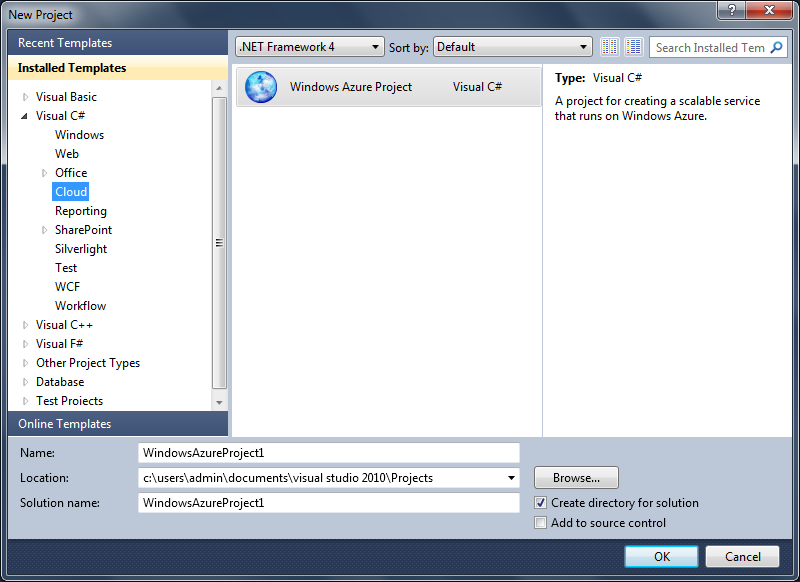
Considering that we have all the things ready, we will continue with the procedure of creating a WA project for our asp.net application. For creating WA project for our application go to:

File >> New Project >>

Under installed templates we will see Cloud option. When we click on the cloud option, we will be able to find Windows Azure Project. See the image shown below :

P4.1

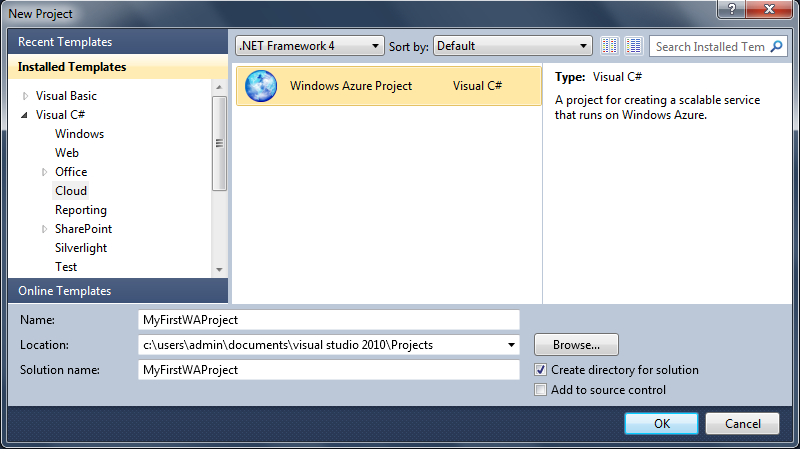
Give appropriate name to the Project & Solution & click on ok to create the project. See the below shown image :

P4.2

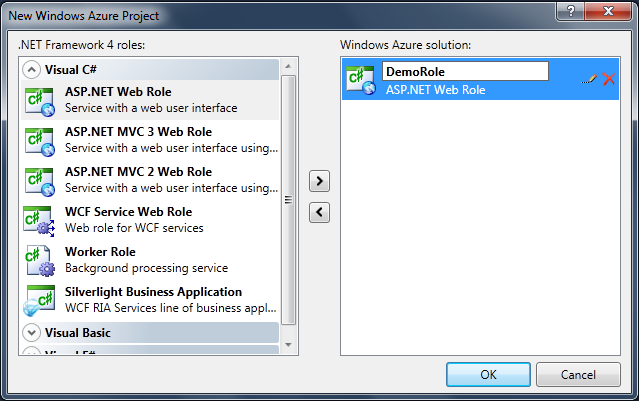
After clicking OK, one new dialog box will open showing the .Net framework 4 Roles . If you remember in the first note we heard about the terms web role (web application) & worker roles (background running applications). So in this dialog box we will be able to see different type of web roles & worker roles. As we said in the previous note that here we will be only working with simple ASP.Net Application, so we will select ASP.Net Web Role and add it to our Windows Azure Solution. After moving the ASP.Net Web Role to our solution, we need to rename the WebRole from “WebRole1” to appropriate Role Name (In our case we will take as “DemoRole”) and then click OK to proceed further. Ckeck out the image shown below :

P4.3

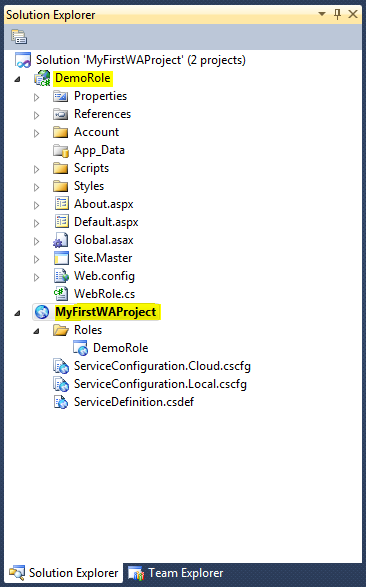
Now under solution explorer you can see :

  1. Solution with the name “MyFirstWAProject”
  2. Under the solution we will see two projects created. one will be our Windows Azure Project which we created initially with the name “MyFirstWAProject” & another will be our WebRole with the name “DemoRole”

When we try to explore our Windows Azure Project, we find a folder Roles containing the WebRole i.e. “DemoRole”. So indirectly we can say that here our ASP.Net Application is mapped with the Windows Azure Project. Apart from the Roles folder, we will also see a three files :

  1. ServiceConfiguration.Cloud.cscfg
  2. ServiceConfiguration.Local.cscfg
  3. ServiceDefinition.csdef

[ Note : If Windows Azure SDK ver 1.5 or lesser is installed on our system then we will be able to see only two files : ServiceConfiguration.cscfg & ServiceDefinition.csdef. If higher version than 1.5 is installed then only we will be able to see three files. ]
See the image shown below :

P4.4

So here we have completed our first step that is “Creating a Windows Azure project for our ASP.Net application”. Now what about ServiceConfiguration & ServiceDefination Files? Why they are necessary? All these questions we will see in our later notes. For the time being, we just have to make a note that for deploying & running our application on cloud (WAP), the first & the foremost step and of-course the mandatory step is to create a Windows Azure Project for our application.

ASP.Net application deployment in Windows Azure Environment

In this note we will refer Window Azure as WA, Windows Azure Platform as WAP.

WA is a platform provided by Microsoft to utilize the cloud computing power. In WAP we can deploy our web applications (web role in terms of WA) and also background running applications (worker role in terms of WA). Note that worker role are just the background running applications and the don’t have any kind of UI.

Now for some time we are going to keep the “Worker Role” on one side and focus on “Web Role
Now when we say a web role, we mean here an ASP.Net Web Application. I would like to tell you that WAP supports MVC Applications and many others, but here we are talking about only Simple ASP.Net Web Application.

Here we will take a asp.net application which interacts with sql server database.

For running our web application successfully in WAP, we will have to follow the below given steps:

  1. Creating a WA project for our asp.net application.
  2. Migrating the local sql server database to sql azure.
  3. Deploying the WA project which we created in first step to WAP.
  4. Making web application accessible to external world.

We will see all these steps in detail. After completing all the four steps you be able see our web application running successfully on WAP.

In the next note we will see [Step 1 – Creating a Windows Azure project for our ASP.Net application].