Step 2 – Migrating the Local SQL Server database to SQL Azure.

If you have directly landed on this page, check out [ASP.Net application deployment in Windows Azure Environment] post first.

In this post we will see how to migrate our Local SQL Database to SQL Azure. But before that we will see, What is SQL Azure ?

What is SQL Azure ?
SQL Azure is a cloud based database service offered by Microsoft similar to those offered by Amazon.

So should we say that now SQL Azure is nothing but the SQL Server 2008 R2 residing in the cloud ? The answer to this is “NO“. SQL Server 2008 R2 & SQL Azure are totally different platforms offered by Microsoft. SQL Server 2008 R2 is a product designed to be On-premise, Where as SQL Azure is a platform as a service (PAAS). But if we talk about, What all things we can do on SQL Azure ? then the answer is almost all the things which we were doing in SQL Server Standalone (except those requiring physical administration. since we do not have control over the physical resources of SQL Azure). Only thing here is, the way of doing certain operations on SQL Azue may differ from that of doing on On-premise instance of SQL Azure.

Every platform has its pros & cons and SQL Azure also has its own. But for the time being we will leave behind the topic of pros & cons of SQL Azure and focus on How to migrate the SQL Server R2 Database to SQL Azure.

So we will perform this operation step by step as follows :

  • Creating a New (blank) SQL Azure Database using the Management Portal of Windows Azure Platform. [ Note for accessing the Management Portal you must have a subscription ]
  • After successfully creating the New SQL Azure Database, go back to your SQL Server Management Studio & generate the script of the database which you want to migrate. For generating the script, right click on database >> goto Tasks >> click on Generate Script option.
  • In “choose objects to generate scripts”, select entire database, as we want to generate script for entire database. It up to you for which object of the database you want to generate the script.
  • As we are generating the script for SQL Azure, we need to do certain settings for that and hence before generating the script, click on Advanced Settings button to set the scripting option.
  • Change the Script for Server Version to “SQL Server 2008 R2” 
  • Change Script for Database Engine Type to “SQL Azure Database“. This we automatically make all the required changes to the script to make is compatible with SQL Azure Database.
  • Generate the Script.
  • After generating the script, two very important changes which you need to take care of are : (1) Change datatype of columns having varchar(max) or text datatype to nvarchar(max). (2) Make sure that all the tables in your database are having Clustered Index.

Now if you have completed all the above given steps, it means that your script is ready to be executed in SQL Azure.

For executing the script you have two options : either you connect to the SQL Azure using your Management studio, or go to the Windows Azure Management portal & then execute the script to migrate your database objects to SQL Azure.

For transferring the data to SQL Azure, you can either generate the data in the form of the script or you can use Export Data Option ( Right Click on Database >> Tasks >> Export Data). In this case of Export Data Option you will be asked to enter the server name which you can get from you Windows Azure Management Portal.

For generating script for data, you just have to go to Advanced button & change value of “Type of Data to script” to Data only. If you want to insert data using the same script used for creating the database, then you have to set the value of “Type of Data to script” to “Schema & Data“, This will create the tables & insert the data at once.

So here we complete the Step 2 – Migrating the Local SQL Server Database to SQL Azure. In the next post we will see Step 3 – Deploying the WA project which we created in Step 1 to Windows Azure Platform.
Step 1 – Creating a Windows Azure project for our ASP.Net application

In this note we will see (step 1) of ASP.Net application deployment in WAP i.e. Creating a Windows Azure project for our ASP.Net application.

If you have directly landed on this page, check out [ASP.Net application deployment in Windows Azure Environment] post first.

Before starting the first step, there are some requirements which we need to fulfill.

Requirements :

  1. Simple asp.net application with proper sql server database connectivity.
  2. Need visual studio 2008 with sp1 or visual studio 2010
  3. Need to download and install Windows Azure SDK (latest) for VS & VS Tools for WA.

Above given were the basic requirements which we need for our first deployment of asp.net application in Windows Azure platform.

Considering that we have all the things ready, we will continue with the procedure of creating a WA project for our asp.net application. For creating WA project for our application go to:

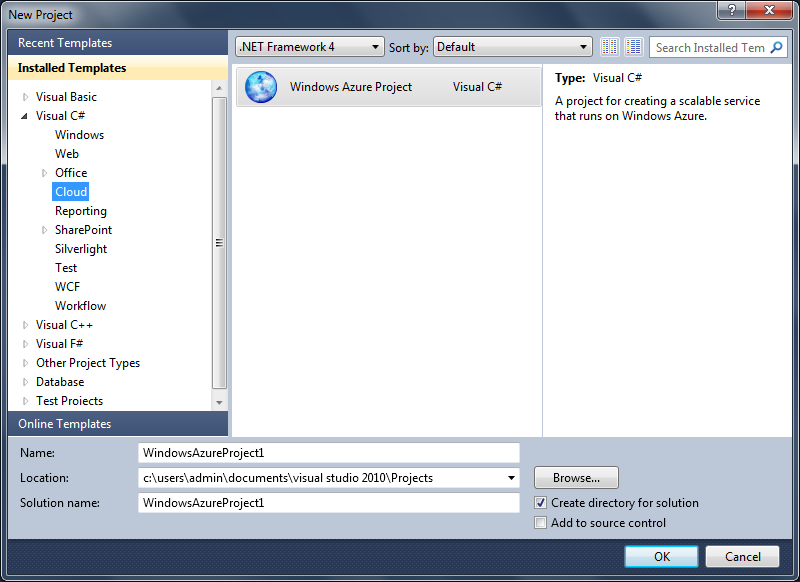
File >> New Project >>

Under installed templates we will see Cloud option. When we click on the cloud option, we will be able to find Windows Azure Project. See the image shown below :

P4.1

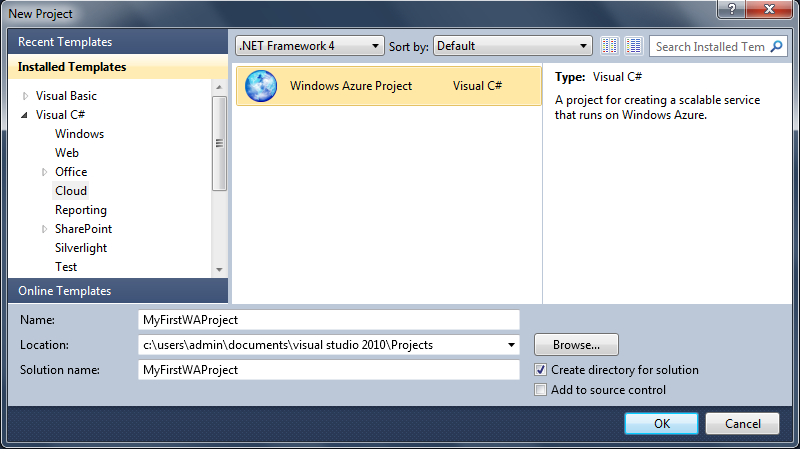
Give appropriate name to the Project & Solution & click on ok to create the project. See the below shown image :

P4.2

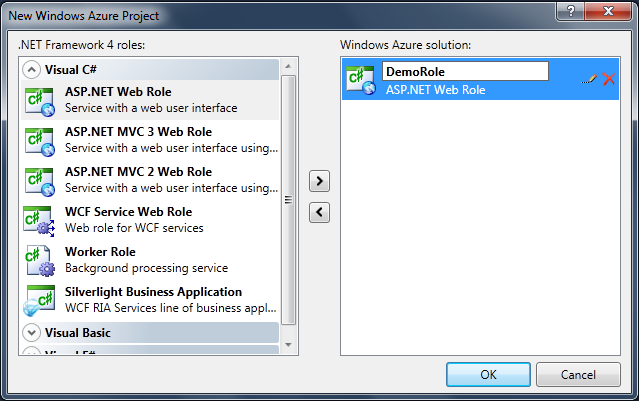
After clicking OK, one new dialog box will open showing the .Net framework 4 Roles . If you remember in the first note we heard about the terms web role (web application) & worker roles (background running applications). So in this dialog box we will be able to see different type of web roles & worker roles. As we said in the previous note that here we will be only working with simple ASP.Net Application, so we will select ASP.Net Web Role and add it to our Windows Azure Solution. After moving the ASP.Net Web Role to our solution, we need to rename the WebRole from “WebRole1” to appropriate Role Name (In our case we will take as “DemoRole”) and then click OK to proceed further. Ckeck out the image shown below :

P4.3

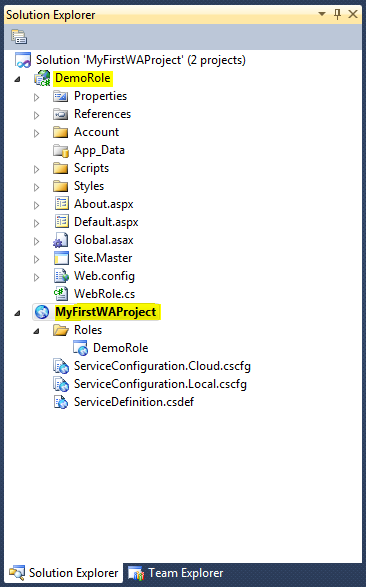
Now under solution explorer you can see :

  1. Solution with the name “MyFirstWAProject”
  2. Under the solution we will see two projects created. one will be our Windows Azure Project which we created initially with the name “MyFirstWAProject” & another will be our WebRole with the name “DemoRole”

When we try to explore our Windows Azure Project, we find a folder Roles containing the WebRole i.e. “DemoRole”. So indirectly we can say that here our ASP.Net Application is mapped with the Windows Azure Project. Apart from the Roles folder, we will also see a three files :

  1. ServiceConfiguration.Cloud.cscfg
  2. ServiceConfiguration.Local.cscfg
  3. ServiceDefinition.csdef

[ Note : If Windows Azure SDK ver 1.5 or lesser is installed on our system then we will be able to see only two files : ServiceConfiguration.cscfg & ServiceDefinition.csdef. If higher version than 1.5 is installed then only we will be able to see three files. ]
See the image shown below :

P4.4

So here we have completed our first step that is “Creating a Windows Azure project for our ASP.Net application”. Now what about ServiceConfiguration & ServiceDefination Files? Why they are necessary? All these questions we will see in our later notes. For the time being, we just have to make a note that for deploying & running our application on cloud (WAP), the first & the foremost step and of-course the mandatory step is to create a Windows Azure Project for our application.

ASP.Net application deployment in Windows Azure Environment

In this note we will refer Window Azure as WA, Windows Azure Platform as WAP.

WA is a platform provided by Microsoft to utilize the cloud computing power. In WAP we can deploy our web applications (web role in terms of WA) and also background running applications (worker role in terms of WA). Note that worker role are just the background running applications and the don’t have any kind of UI.

Now for some time we are going to keep the “Worker Role” on one side and focus on “Web Role
Now when we say a web role, we mean here an ASP.Net Web Application. I would like to tell you that WAP supports MVC Applications and many others, but here we are talking about only Simple ASP.Net Web Application.

Here we will take a asp.net application which interacts with sql server database.

For running our web application successfully in WAP, we will have to follow the below given steps:

  1. Creating a WA project for our asp.net application.
  2. Migrating the local sql server database to sql azure.
  3. Deploying the WA project which we created in first step to WAP.
  4. Making web application accessible to external world.

We will see all these steps in detail. After completing all the four steps you be able see our web application running successfully on WAP.

In the next note we will see [Step 1 – Creating a Windows Azure project for our ASP.Net application].